
When a user (not admin) views their ticket tab and tries to export tickets, the set date option no longer displays the fields to specify the date range.
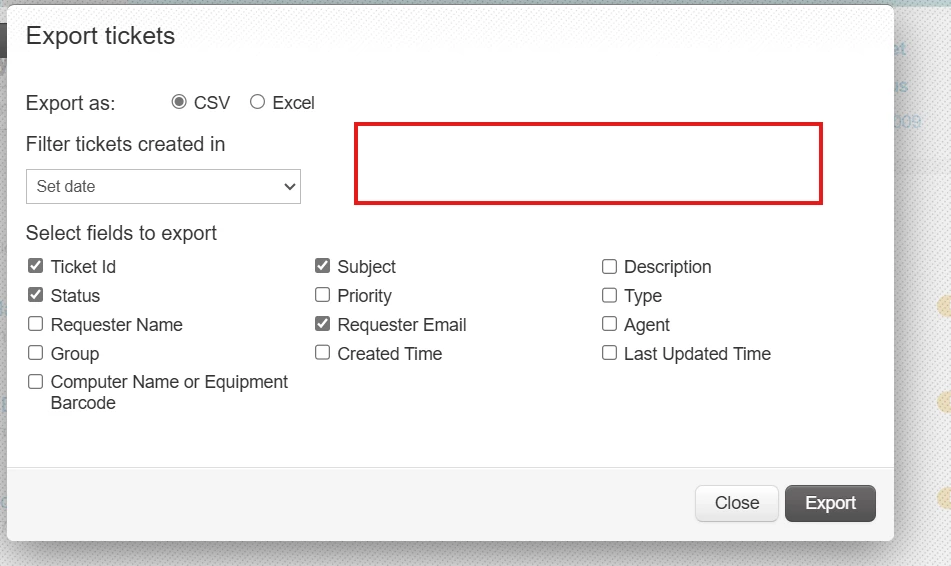

When a user (not admin) views their ticket tab and tries to export tickets, the set date option no longer displays the fields to specify the date range.
Best answer by mahendarsingh
Hi
Thank you for being this up.
The issue where the date option no longer displays the fields to specify the date range when exporting tickets may be caused by browser-related factors or specific configurations. Here's how you can approach resolving it:
1. Clear Cache and Cookies: Have the user clear their browser cache and cookies, as these could interfere with how the export functionality displays.
2. Check Browser Extensions: Disable any browser extensions that may be interfering with the functionality. Some extensions might modify how elements are rendered on the page.
3. Test in a Different Browser: Have the user try exporting tickets in a different browser to check if the issue is browser-specific.
4. Default Theme or Customization Issue: Verify if the portal has been heavily customized. Custom scripts or modifications could cause UI elements not to load correctly. If there is customization, reverting to the default theme temporarily can help identify if that is causing the issue.
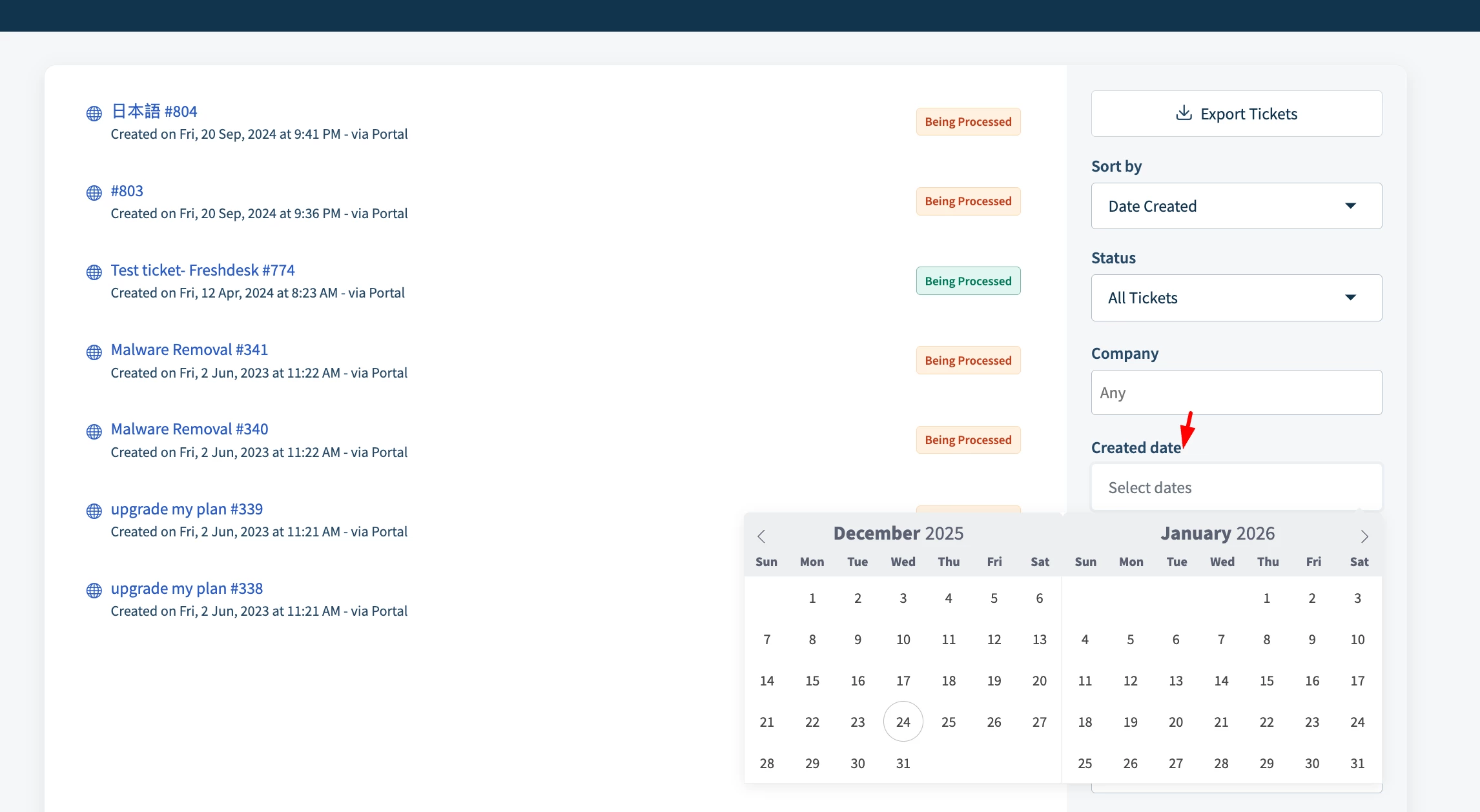
5. Please use created date to filter the data and then use export tickets,
Following these steps systematically should help resolve the issue or pinpoint the cause of the missing fields.
Please do let me know if you require any further assistance on this matter.
Already have an account? Login
No account yet? Create an account
Enter your E-mail address. We'll send you an e-mail with instructions to reset your password.