Question

Out of Office Workflow - Question

  • November 25, 2025
  • 3 replies
  • 78 views

rajsrk
Apprentice

There is an automatic workflow configured to close all incoming mails with an Out of Office message. Based on certain key words either in Subject or Body, the ticket gets closed. What will be the scenario if a user sends an email to IT support email, and the requester had kept his supervisor in CC.

As per the process, the ticket is created in the system and a technican is assigned. But if the supervisor is on leave and there is an Out of Office mail from him to all recipeitns, includign IT support, the system triggers the workflow and closes the ticket. How to avoid such situations. Kindly explan any work around or a better aprpoach

3 replies

Hubert.Panszczyk
Top Contributor ⭐
Forum|alt.badge.img+6

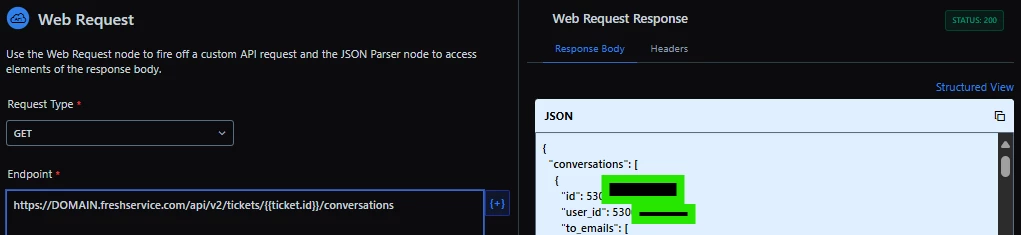
You can try using a Web Request to list the entire conversation. Then you feed it into a JSON Parser, and this way you extract the placeholder for the ID of the user who added the latest note. Once you have this ID, you can compare it with the requester or requested for. With that, you add a condition to your working workflow to check whether they are the same - if yes, close the ticket; if not, do nothing.


https://DOMAIN.freshservice.com/api/v2/tickets/{{ticket.id}}/conversations
Newest note: $.conversations[0].user_id

If you need more details on how to do it, let me know. 🙂


rajsrk
Apprentice
  • Author
  • Apprentice
  • November 26, 2025

Thanks for the response ​@Hubert.Panszczyk . It would be appreciable if you could provide more details on how to get this done. 

Thanks in adavance. 


Hubert.Panszczyk
Top Contributor ⭐
Forum|alt.badge.img+6

Thanks for the response ​@Hubert.Panszczyk . It would be appreciable if you could provide more details on how to get this done. 

Thanks in adavance. 

1. You create a GET Web Request with the endpoint: https://DOMAIN.freshservice.com/api/v2/tickets/{{ticket.id}}/conversations

This request will load the entire conversation - run Test Web Request and copy the response in JSON format (there’s an icon to copy it in the top-right corner of the window, ctrl+c/ctrl+v didn’t always work for me).

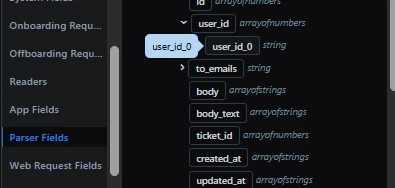
2. You take what you copied and paste it into the JSON Parser. Set the created Web Request as the source, click Generate Output, and the system will create the outputs and their paths based on it. In this case, you will be interested in the User_ID - your path will probably be named $.conversations[*].user_id - this path loads an array of all user IDs that participated in this ticket. You only need the most recent one, so you must create a new path (three dots on the right - Add a variable), set the name, data type to String, and the path to $.conversations[0].user_id

This way, you get the User_ID of the person who added the most recent note.

3. Now you have a placeholder that you can use in a condition node to compare it with the Requested For ID or the Requester.

4. You have a ready condition that you can now use - compare the IDs and if they match, close the ticket, and if they don’t, do nothing (then connect it with your workflow that checks your keywords and so on).

This endpoint returns 30 records, and as far as I remember it should load them starting from the newest ones, so it shouldn’t cause issues with this workflow. However, if it becomes necessary to load more records, the end of the endpoint should look like this for records 31–60: conversations?page=2 etc.