Hi, so this is a two part question. First question, we have a few senior associates as requesters and not agents, will we be able to share analytics reports with them? I searched for them under “share reports”, but couldn’t find their profiles. There is an option called share to “everyone”, I’m not sure if that will share the report with all agents and requesters, that might become a mess!! Second question, is there any metric that shows the entire time a ticket has taken, like from creation time to resolution time in business hours? TIA!!

Solved
Query regarding Analytics


 +1
+1Best answer by Nav_in
Hey
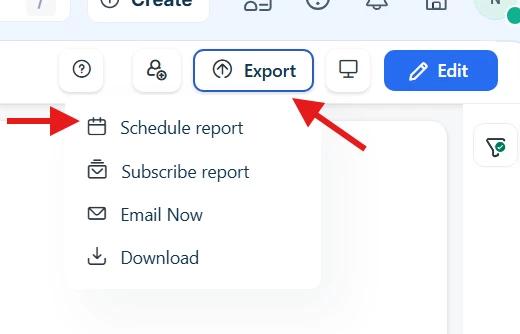
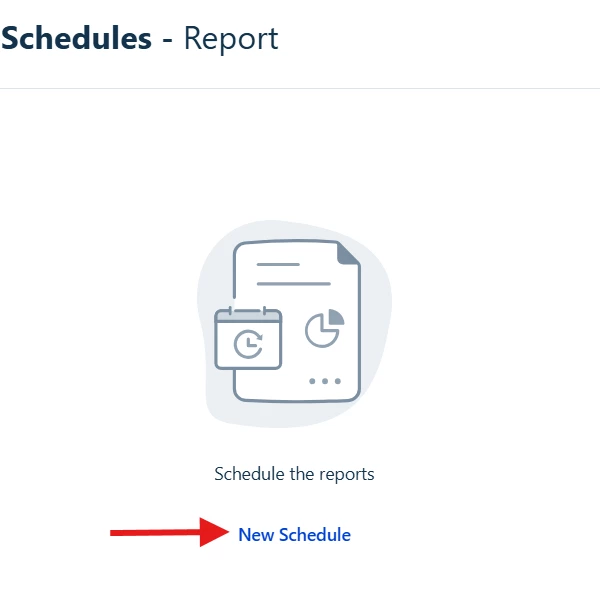
Then click on “New schedule” :
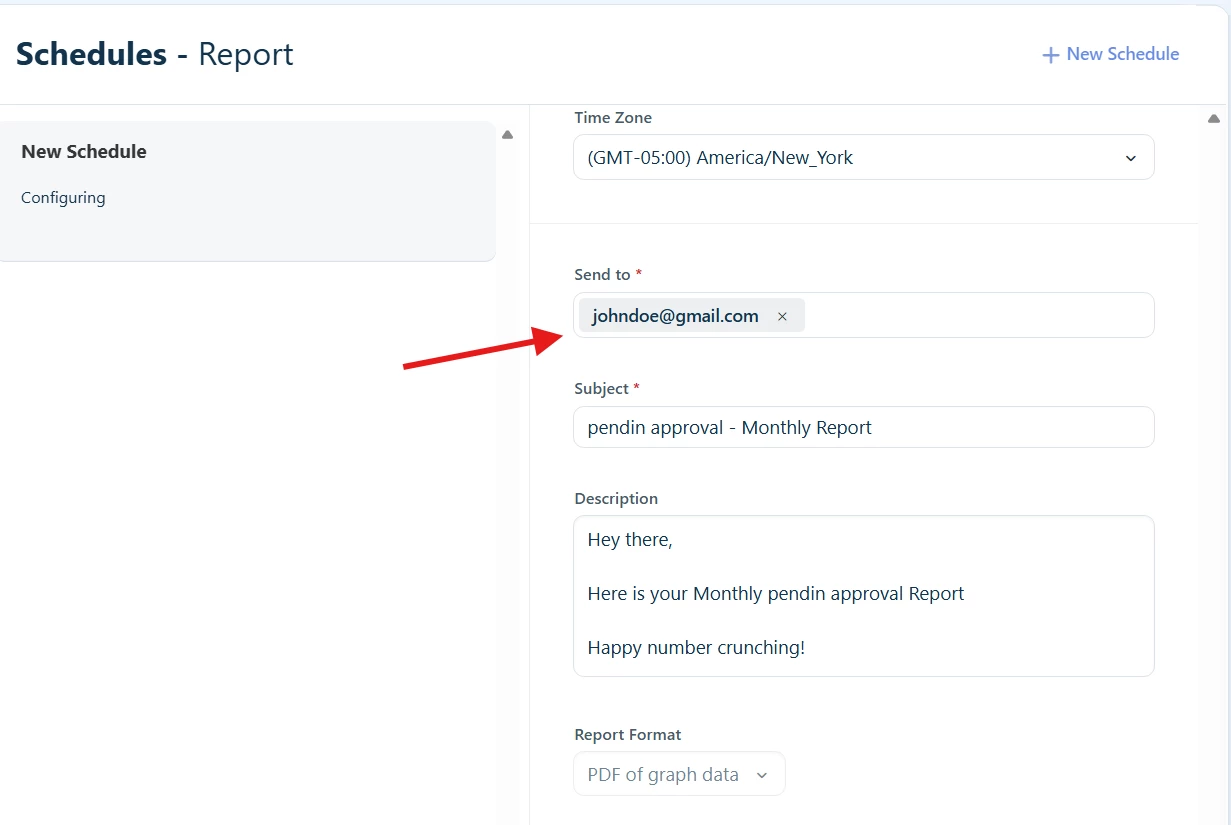
Fill in the required details and enter user’s email ID in the “Send to” field highlighted below:
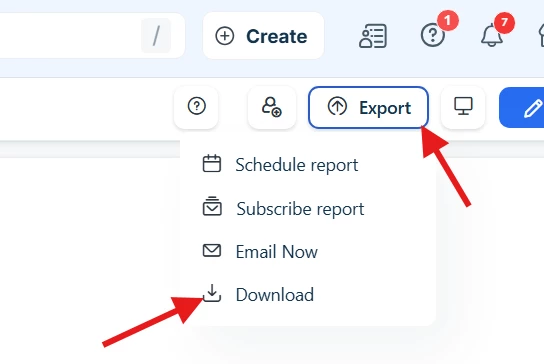
This will send a report to the requester based on the schedule you have set. Most probably the data they receive will be in “Pdf of Graph data” format. But if you want them to view a detailed report then the only option is to “Export” → “Download” and then share that report with requester. If you want to share only certain specific data, then go to the desired widget → click underlying data → click export → download (as CSV or Excel) → share the downloaded file to requester.
Also note that while sharing if you click “Everyone”, it only shares the report with agents and not all users. Furthermore, only agents with report access will be able to view the shared report.
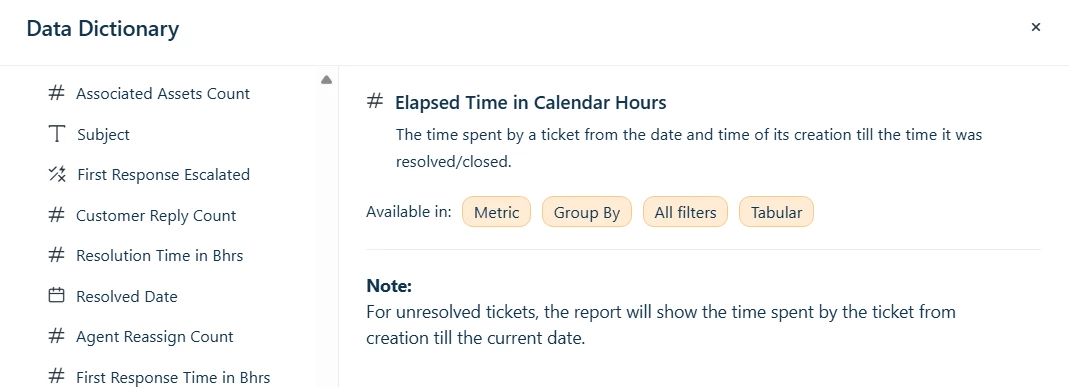
To answer your second question, you can use “Elapsed time in Calendar hours” metric to view details of a ticket from creation time to resolution time in calendar hours, but I don’t think there is a “Elapsed time in Business hours” metric:
Hope this helps!



Join the Community
Already have an account? Login.
Welcome back!
Sign in to pick up where you left off in the Community.
New to the community? Create an account
Social Login
Login for Freshworks Employees Login with LinkedInor sign up below
Enter your E-mail address. We'll send you an e-mail with instructions to reset your password.